
Mobile App - All the games, bonuses and achievements in one app!





 Safari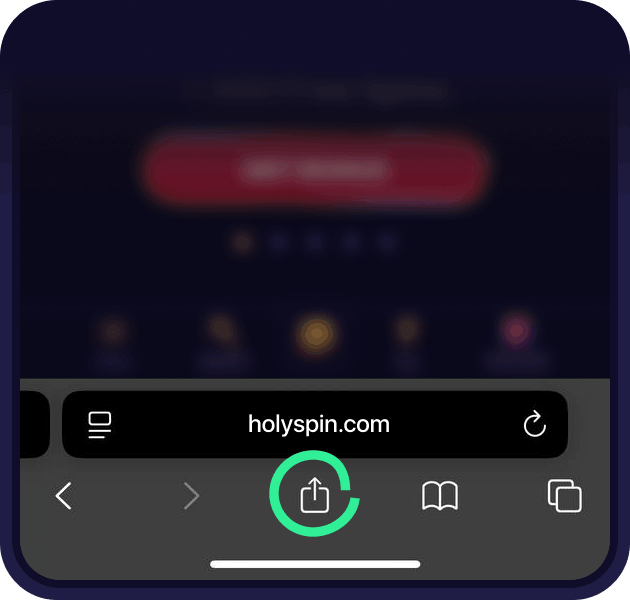
The HolySpin app is something you look for in Google Play or the App Store. It's a web app, which means you add the casino to your home screen straight from the browser and it opens in one tap after that, with its own icon and no address bar.
For you the difference is mostly about convenience. There's no APK to find, nothing to update by hand, and the app takes up almost no space on the phone compared with a normal application. Everything you see on the site is in it: the full game lobby, bonuses, tournaments, the loyalty program, payments and live chat with support. Below is how to install it on Android, on an iPhone and even on a Windows computer, plus what changes once you do.
What the App Actually Is
A web app runs through your browser engine but behaves like an installed application. After you add it, there's an icon on your home screen, the casino opens full screen without the browser interface around it, and your login stays on the device the same way it does in a browser.
Two things follow from that, and both are in your favour. First, there's no separate HolySpin download to keep updated: when we release something new on the site, it's in the app the next time you open it. Second, there's no APK from a third-party file site, which is exactly the kind of link you should avoid anyway, since casino APKs on unofficial pages are a common way to pick up something unpleasant.
What You Get in the App
The tiles on our install page highlight three things, and they're the parts most players use daily.
|
Section |
What you do there |
|
Tournaments |
Join slot races and prize drops, check the leaderboard and the timer |
|
Loyalty program |
See your level, your points and the rewards waiting to be claimed |
|
Bonuses |
Pick a welcome or weekly offer before you deposit, track wagering |
On top of those, the app gives you the same lobby as the desktop site: slots with all the category filters, live casino tables with real dealers, table games, video poker and crash games. Search, provider filters and the "Popular in Canada" shelf all work the same way.
Before You Install
There isn't much to prepare. You need a phone or computer with an up to date browser, a connection, and ideally a HolySpin account, although you can install first and register later from the app itself.
Chrome is the browser to use on Android and on Windows, and Safari is the one to use on an iPhone or iPad, since iOS handles home screen icons through the Share menu rather than through an install button. Both take under a minute.
How to Install the HolySpin App
The steps for installing the HolySpin app depend on the device and the browser, so pick the one you're using. On the install page itself the instructions are shown as tabs with the same four options.
Android, Google Chrome
- Open holyspin.com in Chrome.
- Tap the menu button in the top right corner of the browser.
- Choose the option to install the app and create a shortcut.
- Confirm with Install.
The icon appears on your home screen with the rest of your apps, and from then on the casino opens directly from it.
iPhone and iPad, Safari
- Open the site in Safari.
- Tap the Share icon, which sits at the bottom centre on most iPhones and in the top right on iPad.
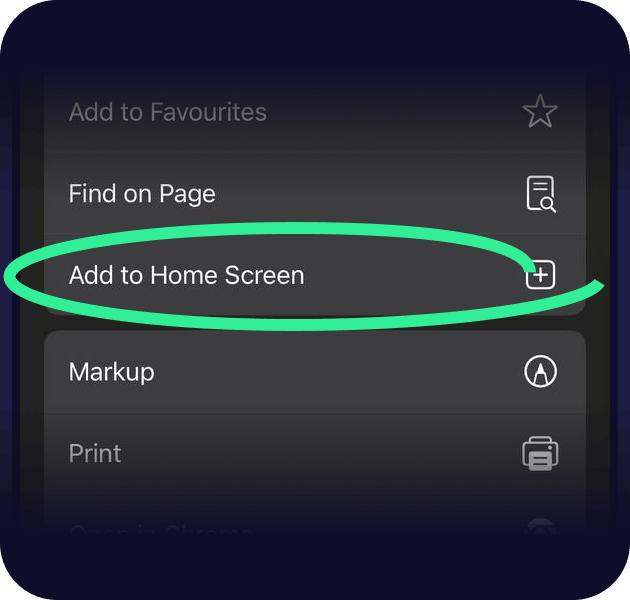
- Choose Add to Home Screen.
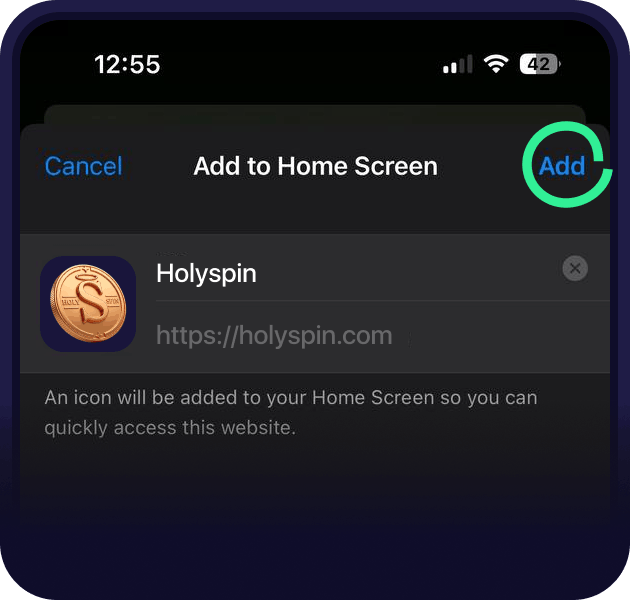
- Tap Add to confirm.
iOS doesn't allow a browser to install anything by itself, which is why the flow goes through Share rather than through an install button. The result is the same: an icon on the home screen that opens the HolySpin mobile casino full screen.
iPhone with Chrome
- Open the site in Chrome, or scan the QR code on our install page with the camera.
- Open the Share menu in the browser.
- Choose Add to home screen.
- Tap Add.
Windows Desktop, Chrome
The same install works on a computer. Open the upper menu in Chrome, choose to install the app and create a shortcut, then confirm. You get a casino window without browser tabs around it, which some players prefer for longer sessions.
Ten Free Spins for Installing
Adding the HolySpin app to your home screen credits 10 free spins to your account, so it's worth opening the bonuses page after the install to see them appear. They come with the conditions that apply to any spin reward, which means a specific game, an expiry date and a cap on how much can be withdrawn from the winnings, all written on the reward itself.
App or Mobile Browser?
Nothing stops you from playing in a normal mobile browser, and plenty of Canadian players do. This is what changes when you install.
|
Installed app |
Mobile browser |
|
|
Opening the casino |
One tap on the icon |
Type the address or use a bookmark |
|
Screen space |
Full screen, no browser bar |
Browser interface takes part of the screen |
|
Updates |
Automatic |
Automatic |
|
Space on the device |
Minimal |
None |
|
Games and bonuses |
All of them |
All of them |
|
Free spins for installing |
10 |
No |
There's no separate version of the casino for the app, so you aren't missing games or offers by staying in the browser. The install is about how quickly you get in and how much of the screen the games have.
Your Account in the App
Your HolySpin account is the same one in the app. Log in with your email and password, and your balance, active bonuses, loyalty level and history are all there. If you were already logged in on the site in that browser, the app usually opens with the session already active.
Deposits work through the same cashier, with Interac, Visa, Mastercard, Skrill, Apple Pay, Google Pay and crypto. The minimum deposit is C$20 and there are no fees on our side. Withdrawals start at C$50 and go through the same verification rules as on desktop, so a fully verified account is worth having before you want to cash out rather than after.
Documents for verification can be uploaded from the phone, which is usually faster than on a computer because you can photograph an ID and send it in the same minute.
Playing Slots and Live Tables on a Phone
Slots are built for a phone screen these days, so the reels, buttons and paytable all resize and nothing important ends up off screen. Bonus rounds and Megaways grids work exactly as they do on desktop.
Live casino tables are more demanding on your connection than slots, because the stream runs constantly and the betting window closes on its own schedule. On a stable Wi-Fi connection it's fine. On a weak mobile signal you may see the video quality drop, and although your bets are settled on the studio's side rather than on your phone, it's more comfortable to play live when the connection is steady.
If Something Goes Wrong With the Install
A few situations come up regularly in live chat.
- No install option in the Chrome menu. Usually the page hasn't finished loading, or the browser is out of date. Reload the site and check for a browser update.
- The icon doesn't appear on iOS. Make sure you used Safari and the Share menu rather than a bookmark. A bookmark opens in the browser, an added home screen icon opens full screen.
- The app opens the wrong page. Delete the icon and add it again from the casino site, since an old shortcut can point to a page that has moved.
- You want to remove the app. Hold the icon and delete it, the same as any other app. Nothing happens to your account or balance, and you can add it again later.
- The install page looks empty on a desktop. Open it on the device where you want the app, because the instructions adapt to the system you're on.
Keeping Up With Offers From the App
The app shows the same promotions page as the site, and that's the reliable place to look. Announcements about campaigns and tournaments also go out by email and SMS, and you'll only receive them if promotional emails and SMS are switched on in your account settings, which is easy to forget after registration.
For anything time sensitive, such as a weekend race or a reload that runs for one day, the promotions page in the HolySpin app is quicker to check than an inbox. It takes one tap and shows what's active for your account right now.
FAQ
Is there a HolySpin APK?
No, and you don't need one. The app installs from the browser as a web app, so there's no APK to download and no file to keep updating.
Is the app available in Google Play or the App Store?
No. Both stores have their own rules for real-money gambling apps. The web app avoids the issue and gives you the same casino on the home screen.
Does the app work on iOS?
Yes. Use Safari and the Share menu, or Chrome with the same Add to home screen option. The app iOS version is the same casino as on Android.
How much space does it take?
Very little compared with a normal app, since the content loads from the site rather than being stored on the device.
Do I need a separate account for the app?
No, it's one account across the app, the mobile browser and desktop. Log in with the same email and password.
Are bonuses different in the app?
No. The welcome package, the weekly offers, tournaments and the loyalty program are identical, and you claim them in the same cashier.
Can I play live dealer games in the app?
Yes, the full live casino section is there, including roulette, blackjack, baccarat and the game shows.
Does the app work without a connection?
No. The games and your balance load from the casino, so an internet connection is needed the same as in a browser.
Does the app work on tablets?
Yes, on an iPad through Safari and on Android tablets through Chrome, with the same steps as on a phone.


